Basic
Free
- Up to 5 products
- One product at a time
- Guided setup and automatic suggestions
 Product Variant Images
Product Variant Images gives every color its own photo gallery. It suggests which photos go with each color from the ones you already have; you just check them.
Shopify shows every photo of a product, whatever the shopper selects. They pick Green and scroll past orange, blue and gray to find it, or they don't, and buy without seeing the color they chose.
The usual fixes take time: editing theme code, creating one product per color, or apps that make you tag every photo by hand.
The app opens with a short guide the first time. Nothing changes in your store until the last step.
The app suggests the product with the most colors and photos: it's where the difference shows most.
The photos are already sorted by color. Tap each color to see what your shoppers will see, then “Looks good”.
The theme editor opens with the gallery already in place. You tap Save, and the app checks your store by itself.
Pick a color like a shopper would. Switch between your store today and your store with the app.
No tags to write, no rules to learn. The app does the sorting; you decide.
It uses the photo you chose for each variant, the color in the file name or alt text, the color of the product in each photo, and their order. Then you check.
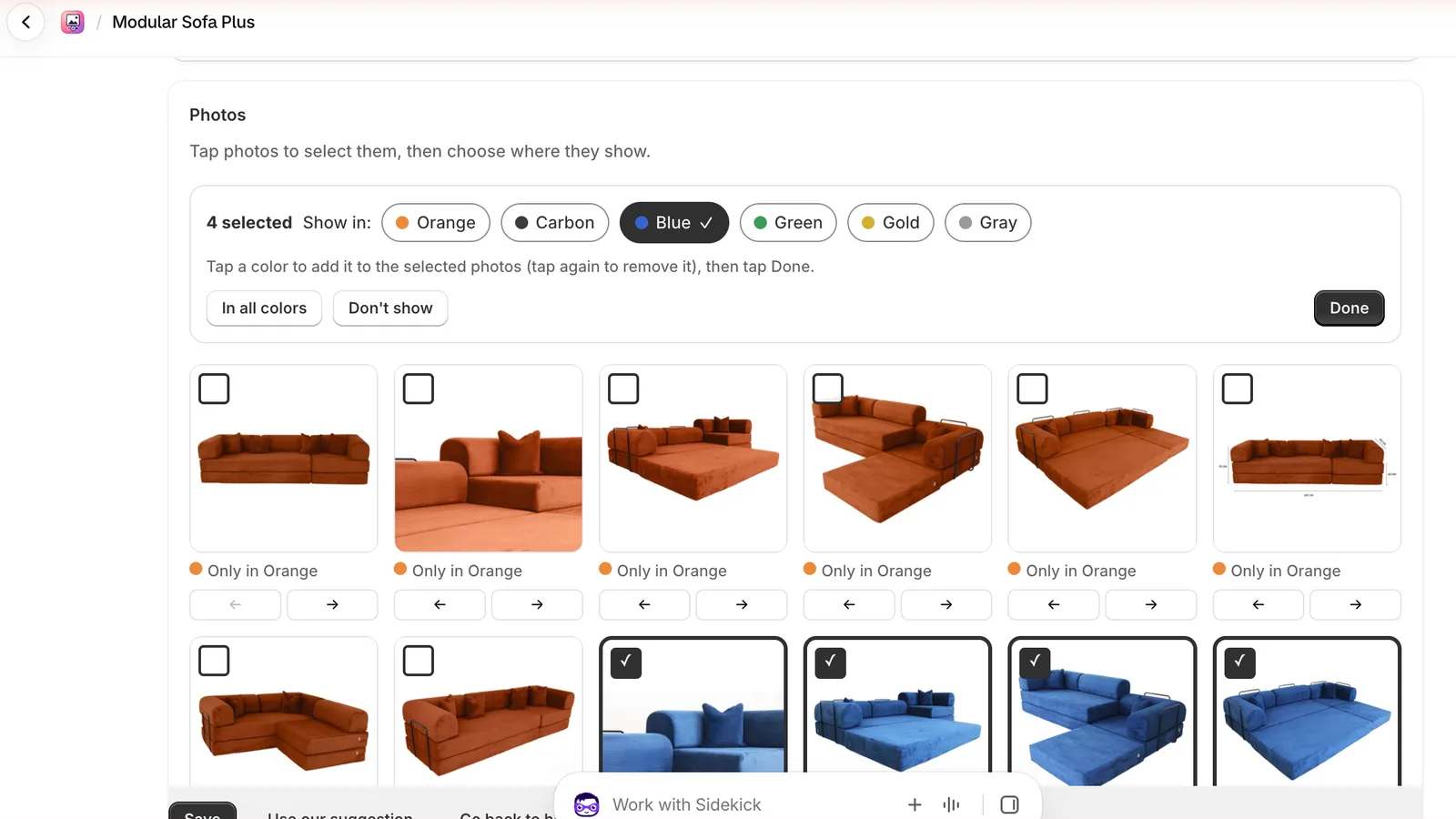
Select photos, tap the colors where they belong (tap again to remove), and Done. Save when you finish.
Size charts and lifestyle photos show after each color's own photos, for every color.
Choose whether photos you add later show in all colors or wait until you pick their color.
Set up your whole catalog automatically on Growth and Enterprise, with a pause button.
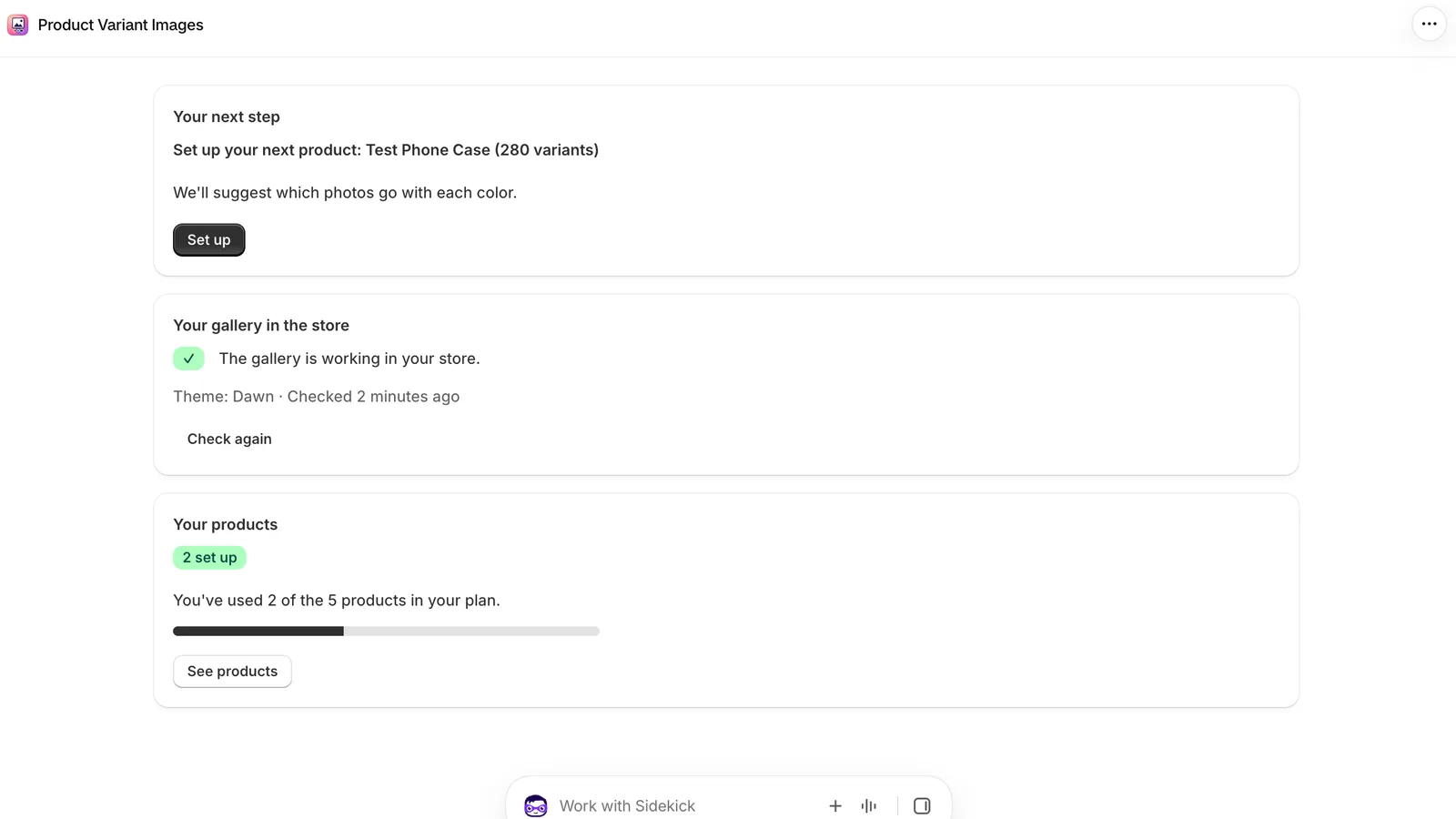
The app tells you if the gallery is working in your theme, and what to do if it isn't.
Everything stays as it is in Shopify. If you uninstall, your store shows your usual photos again.
Everything happens inside your Shopify admin, in Apps → Product Variant Images.
Every product has a preview: tap a color and see exactly the photos your store will show, in order.
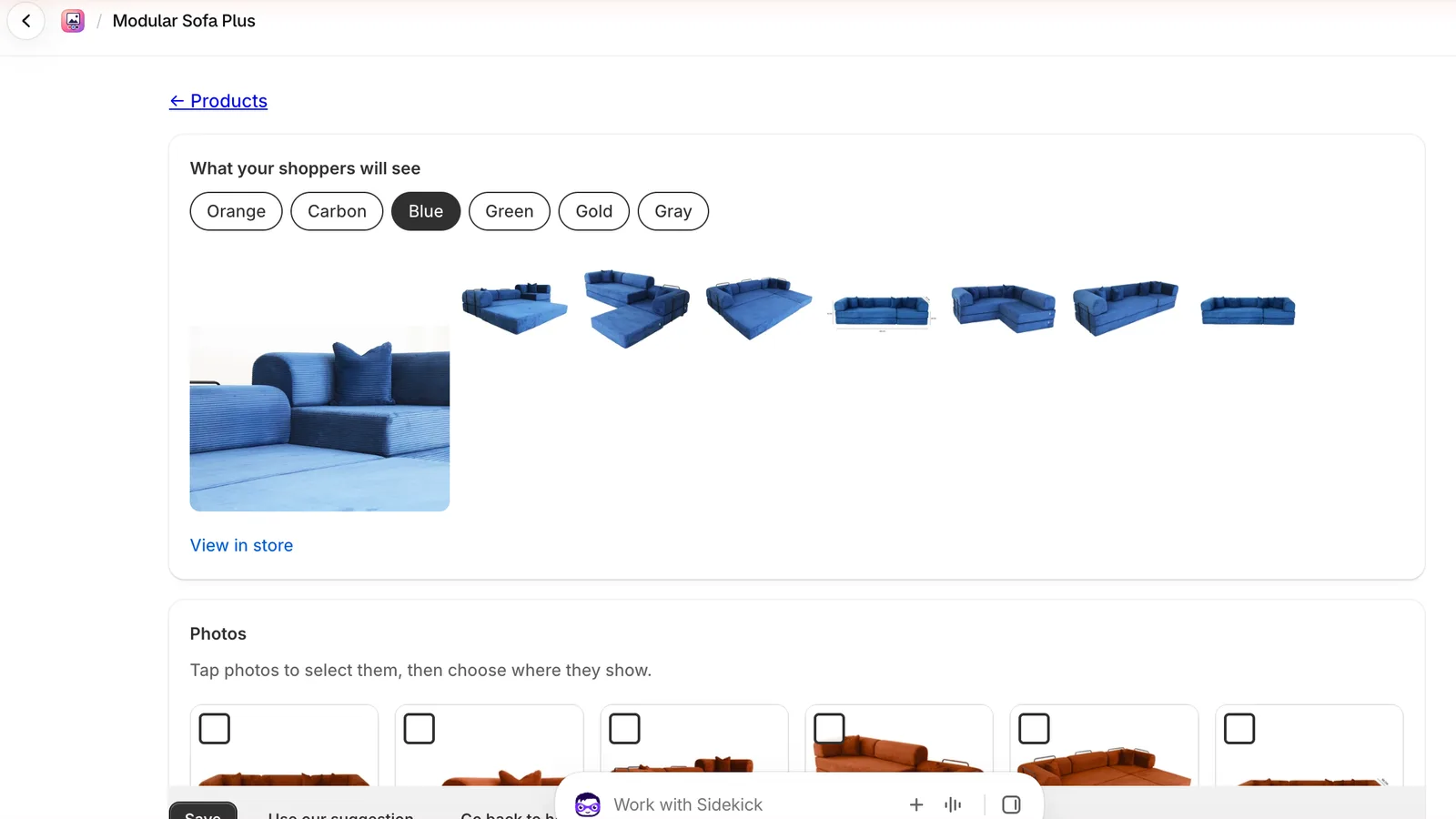
Select one or many photos, tap the colors under “Show in:”, then Done. “In all colors” and “Don't show” are one tap away.
Home tells you your next step, whether the gallery works in your theme, and how much of your plan you've used.
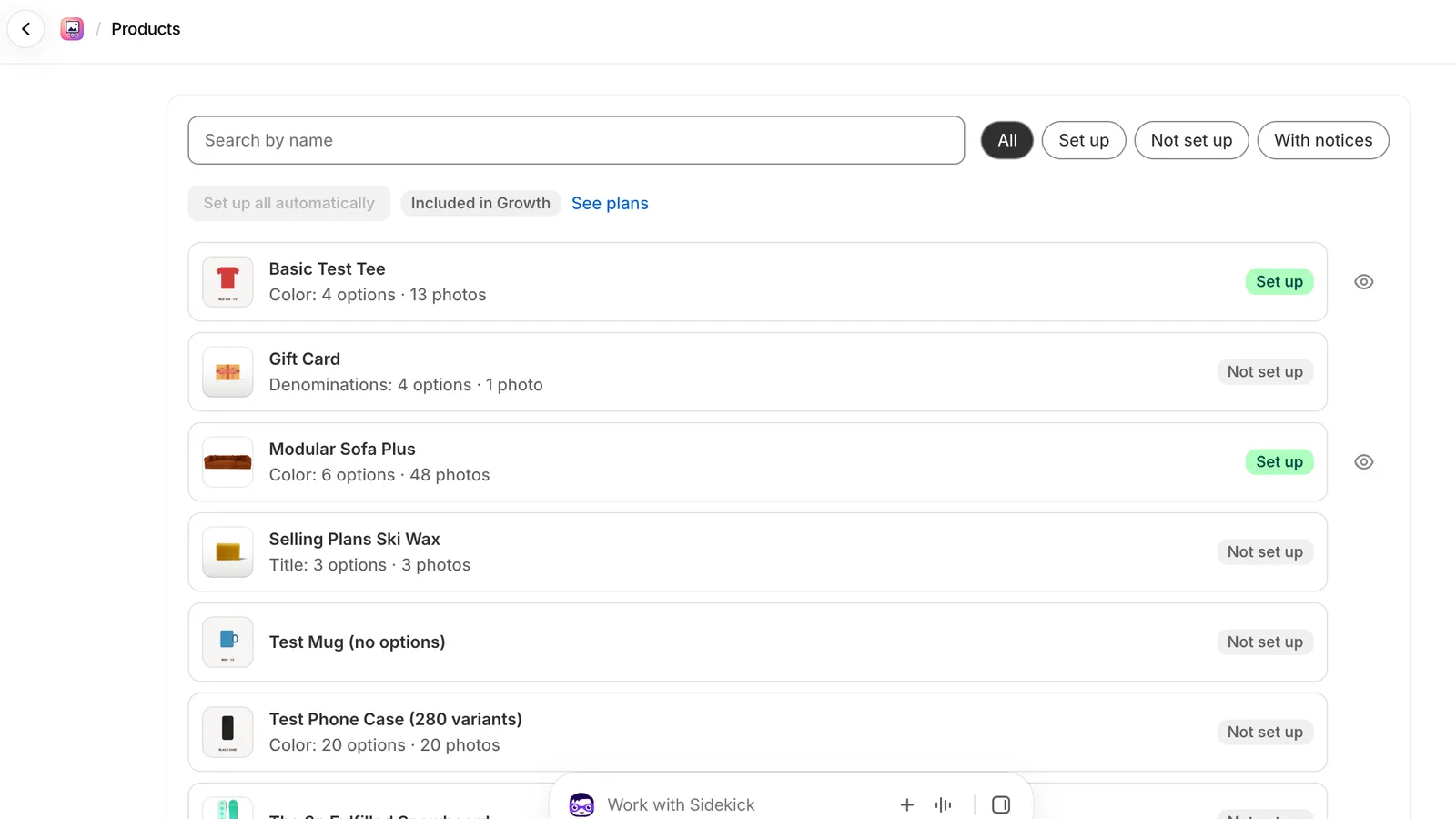
Filter by set up or not, open any product, or tap the eye to see it in your store.
Every screen, button and message is explained in the help center.
Billed by Shopify on your Shopify invoice. Change or cancel your plan anytime from the app.
Free
USD 6.99 / month
or USD 69.90 per year
USD 14.99 / month
or USD 149.90 per year
The gallery has to be added to your theme once. Go to Settings and look at “Your gallery in the store”: if it isn't there yet, open the theme editor from there, check that the gallery is inside the product section and tap Save. Then tap “Check again”.
It uses the photo you chose for each variant in Shopify, the color written in the file name or the alt text, the color of the product in each photo and the order of your photos. It's a suggestion: review it in the product and save when it looks right.
In Products, open the product, tap the photos to select them, then tap the colors where they should show (tap a color again to remove it) and tap Done. When you finish, tap Save. You can also choose “In all colors” or “Don't show”.
Until you choose their color, new photos show in all colors or stay hidden, as you set in Settings → Advanced options. Each product can have its own setting under Advanced options in the product.
It works with Shopify's free themes and many others. Settings tells you whether the gallery works in your theme. If it doesn't, write to us and we'll adapt it.
In Plans, tap “Change plan”. Shopify shows the plans and charges you on your usual Shopify bill. If you move to a smaller plan, the products you already set up keep working; you just can't add more than the plan allows.
No. Your photos stay as they are in Shopify. The app only decides which ones the gallery shows for each color.
The gallery disappears from your store and your theme shows its usual photos again. Your setup is kept for 30 days in case you reinstall, and then it's deleted.
No. It works on every Shopify plan with an Online Store 2.0 theme, which includes all of Shopify's current themes.
The gallery's script is under 10 KB compressed and the first photo comes in the page's HTML. In our tests on four themes, the main image loaded as fast with the app as without it.
Your products and your theme. It doesn't access your customers, orders or addresses. The details are in the privacy policy.
The app is in English and Spanish, following your Shopify admin language. The storefront gallery uses your theme's language.
Start with the help center: every screen of the app, what each message means and what to check when something looks off. If it's not there, write to us.
Product Variant Images is in review for the Shopify App Store. Write to us and we'll let you know the day you can install it.
Notify me at launch